Showing posts with label Flash Develop. Show all posts

Wednesday, March 26, 2014

Preloader in Flash Develop

From my previous post, once you have started to embedding swf (huge ones especially) you probably notice that while loading, you are faced with a blank screen or suffers from preload animations... depends on how your project is. So there must be something to do away with this... ... something called preloader. Thankfully, there is a project type in Flash Develop called..."AS3 Project with Preloader"


What it does is it creates a project with a preloader.as. Yup...


And if you view in the Main.as, you will spot the preloader in the
[Frame(factoryClass="Preloader")]
Just compile away and you have your very own swf with a preloader.

Now look into preloader.as

You get comment sections like
// TODO show loader 
// TODO update loader
// TODO hide loader
They are simply placeholders that you can add codes into.

Now in a preferred situation, you will want to add a background image in your preloader. First make an image. I name mine "preloading.jpg"

Put it in the same directory as the codes and add in
[Embed(source = "preloading.jpg")] public var PreloadLogo:Class;
right at the start of the class Preloader declaration. Now in order to use the jpg image you need to add
import flash.display.Bitmap;
at where the imports are. Now at the // TODO show loader, add
var activeLoadBitmap:Bitmap = new PreloadLogo();
addChild(activeLoadBitmap);
That's it. Just compile and run it. Yeah.. it works...

What do you mean you want more?
Wha?
Status? Progress?

Ok I will add a textfield to this just to show the progress status.
Now in order to use a textfield, you need to add
import flash.text.TextField;
Then at the start of the class declaration add in
public var textFiled01:TextField = new TextField;
public var loadperc:int;
Now right after the addChild(activeLoadBitmap); add...
addChild(textFiled01);
Now at the // TODO update loader add in these two lines...
loadperc  = e.bytesLoaded / e.bytesTotal * 100;
textFiled01.text = "Load " + loadperc.toString() + " %";
Compile and ran... that's it. now your preloader comes with a 'Load xxx %" shown on the top left corner! And it will automatically goes to the "main" after finish loading. Here is how mine look like...

Friday, March 21, 2014

Mochimedia closing down :( Absolute beginner blurrr case scenario for MMF users for Ad quickfix with Flash Develop

Well mochimedia will be closing it's doors coming 31st March 2014. :( With this, it will be the end of all my ads revenue from mochimedia. I have been using Multimedia Fusion for my flash games for some time so adding in the mochiads is rather simple as it's a built in feature for MMF Developer Edition.

The two immediate alternatives for ads I found is FGL and ZuperAds. FGL has been a long player in the industry while ZuperAds is a startup that is shaping up rather nicely after mochi's announcement of it's closure. None of them had an extension in Multimedia Fusion for it's flash exporter :(. I am sure sometime later it will be in but meanwhile I am left with embedding the swf files created by MMF in another SWF which acts as a container that serves the ads.

I am going to walk through on how to add FGL ads as at time of writing, ZuperAds requires you to call ZuperAds,hideAd(); to hide the ads once it's displayed while FGL handles the close ads on it's ad container itself... just to keep it simple.

This might not be the best way but it works... for now.

Ok here goes... what you need.
  • FREE Flash Develop - Get it HERE
  • . Download get the latest. I got mine yesterday ver 4.5.2 Zipped version.
  • FREE Adobe Flex SDK - Get it HERE Now if you got the Flash Develop Zipped version like me, you need to manually download this.
  • FREE Flash Player Active X Debug version - Get it HERE
Yes... I am a bit on a tight budget so everything used is FREE. Even the screenshot I captured was done in FREE GIMP.
Now the hard part... go through Flash Develop Wikidocs on how to set it up properly.

Once it's up and running, create your first Flash Project as shown below.


Make sure you choose AS3 Project and not the default 'Flash IDE Project' or you gonna have problem. I named my project 'TryFGL'

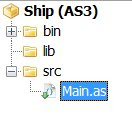
Now you will get a project which has a file class called 'Main' under the src folder. Just go there and click on the Main.as file to view the content. It should look like below


Now try to compile the project... right click on the project and choose 'Built Project'


If everything goes well, the output window at the bottom should show some things that ends with a blue Done.


Congratulations! You are a winner! Ahhh... that's not that bad. You have compiled your swf. It's located in your project directory's bin directory.


Now you need to signup with FGL to get the codes... well I am not going to walk you through the signup and getting the codes part. Just go to FGL.
...
..
.
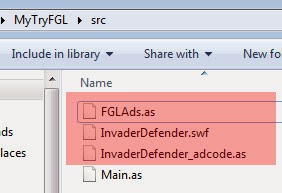
I am just gonna assume you are able to figure it out by yourself, get the "FGLAds.as" file and get to the 'Download Ad Code' button to actually download the ad code for your game. You will get something like [NAMEOFGAME]_adcode.as. Mine is InvaderDefender_adcode.as.

Just copy the two files over to your project's src folder along with your SWF files created from MMF. Mine is InvaderDefender.swf


Open up the [NAMEOFGAME]_adcode.as. It should look like this.


Note the FGL Ad code number "FGL-2xxxxx28". Now go back to the main.as code and edit it as below.


Ok for those lazy lads that do not like typing... here is the code
package 
{
 import flash.display.MovieClip;
 import flash.events.Event;
 import FGLAds;
 [SWF(frameRate='30', width='550', height='400', backgroundColor='0xffffff')]
 /**
  * ...
  * @author 
  */
  
 public class Main extends MovieClip
 {
  
  [Embed(source = "InvaderDefender.swf")] public var MMFswf:Class;
  public var ads:FGLAds  = new FGLAds(this, "FGL-2xxxxx28");
  
  public function Main():void 
  {
   if (stage) init();
   else addEventListener(Event.ADDED_TO_STAGE, init);
  }
  
  private function init(e:Event = null):void 
  {
   removeEventListener(Event.ADDED_TO_STAGE, init);
   // entry point
   ads.addEventListener(FGLAds.EVT_API_READY, showStartupAd);
   
   var MMFswf:MovieClip = new MMFswf() as MovieClip;

         MMFswf.x = 0;
         MMFswf.y = 0;
         addChild(MMFswf);
         MMFswf.gotoAndStop(0);
   
  }
  
  private function showStartupAd(e:Event):void 
  {
   ads.showAdPopup(); 
  }
  
  
 }
 
}


Now, if only you would spent some time to read and understand the codes... but I guess you won't so... for a quick fix just change the

InvaderDefender.swf to your MMF swf filename.
FGL-2xxxxx28 to your FGL Ad Code.

Now lets compile! Yup... that's it! You have successfully embedded your MMF produced SWF into a new SWF with an ad container from FGL. Just click on your index.html in your bin folder.


Your FGL ad should display on top of your game!


Hope this article is useful.

Friday, August 20, 2010

Keyboards with Flixel.. my moving ship.

Okay.. we will be continuing from the previous tutorial of clowness clownship. Now where were we? Ahh.. lets see.... we have the ship on screen (Better read the previous tutorial if you are a bit on the blurr side.... Previous Tutorial)

On this tutorial what we are gonna achieve is :

- Import bitmap into the game Done
- Add the imported bitmap as a sprite to the game Done
- Extend the clownship class (Adds more functionality to the Clownship class)
- Taking care of keyboard presses
- Introduction to movement
- Checking for boundaries so that our ship does not go beyond the viewable area

Meanwhile flash has moved to CS6 ... nah not yet as far as I know... still stuck with CS5. Anyway we are using Flash Develop so the only concern is the Flex SDK ... really... no really... really really...

Back to the codes... your directory should look as below.
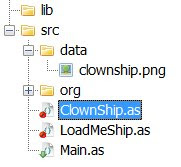


Note the 3 files...

1. ClownShip.as
2. LoadMeShip.as
3. Main.as

The Main.as sets up the entire flash player and calls LoadMeShip.as.
LoadMeShip.as then creates a new ClownShip instance called cship.

Below is the code for Main.as


package

{
import org.flixel.*;

public class ClownShip extends FlxSprite
{

[Embed(source = "data/clownship.png")] private var ImgShip:Class;

public function ClownShip()
{
loadGraphic(ImgShip);
}

}

}


Yet again the code for LoadMeShip.as


package
{
import org.flixel.FlxState;

public class LoadMeShip extends FlxState
{
private var cShip:ClownShip;

public function LoadMeShip():void
{

cShip = new ClownShip(100, 100);
add(cShip);
}
}
}


Wait a minute... it's not the same as the previous example... what's with the cShip = new ClownShip(100,100);
It was cShip = new ClownShip(); before.

Well my furry friend, let me introduce you to these things called parameters... what we are doing here is passing in 100 and 100 again as parameter numero uno no 1 and no 2 to the ClownShip. This also means that our previous ClownShip.as has to be modified to accept and use those parameters.

It's like when you get an aiskrim icecream for free you don't pass any money to the seller. The seller don't even need to count the money... but when you purchase the icecream with money, the seller has to have the ability to count the money.... whatever... what kind of sick example is this?

The entry point (constructor) to the ClownShip.as class is the function which has the similar name to the class name.
Previously on X-Files we have ...


public function ClownShip()
{
loadGraphic(ImgShip);
}


as the entry point (constructor... get used to the term constructor cause this is widely used by people that talks funny...)

To make it able to accept parameters we need to add it in the function declaration...


public function ClownShip(x:int)
{
loadGraphic(ImgShip);
}


Note the x:int. This means accepting 1 parameter named x of type integer (32-bit signed integer). Yes you need to declare what kind of parameter this bozo constructor is accepting. But wait... there are 2 of them.. 2 jedi knights? Now there are 2 of them!
So us having a higher plain of intelligence will quickly deduced that the constructor should look like this...


public function ClownShip(x:int,y:int)
{
loadGraphic(ImgShip);
}


Get it? I do hope you do. Now loadGraphic has been explained about a million times in the previous tutorial so I am not gonna go into that.

Ok now you can accept 2 parameters into the constructor, now what? The 2 parameters from cShip = new ClownShip(100, 100); is actually the X and Y coordinates where we want the ClownShip to appear, so within the ClownShip main function we call "super(x, y);". It should now look like this...


public function ClownShip(x:int,y:int)
{
super(x, y);
loadGraphic(ImgShip);
}


Wha? super? What the? Ok I think we need some words about the "super" function.
Here goes...

Long ago in a galaxy far far away.. the hope of freedom ..

Now which class was ClownShip extended (derived) from? Any answers? Yes.. the FlxSprite class... (from the "public class ClownShip extends FlxSprite") so whenever we call "superman", it simply means that we are calling the superclass's constructor...
...
..
.
which in this case is the constructor function of FlxSprite, which is

"public function FlxSprite(X:Number = 0, Y:Number = 0, SimpleGraphic:Class = null)" from the FlxSprite.as file.

No don't look into the FlxSprite.as... just look into the documentation that comes with Flixel. From there you will also find out that the first and second parameter passed into the super corresponded with the X and Y coordinate of the created instance.

Okay so now "super" simply means referring to the parents (extended from) object. You can even call the parents object's function / method ... lets say you wanna call the "update" function from FlxSprite.. you can simply call "super.update();" which you are gonna use in the near future. :D

So I hope you pretty much get the idea of "super". While "duper" simply means calling the grand...

Now we are going to add a function which Flixel calls each game loop, the ultimate most important function of them all the "update" function. Now if you look into the FlxSprite there is already an update function which has been inherited into the ClownShip.as class so why do we need to add it somemore?

You are right.. it has already been inherited but then we wanna modified that update function to add in listeners for keyboard strokes so we want to override it's parents update function. How are we gonna do this? Well we use override...


override public function update():void {
}


What this means now is whenever Flixel calls the update for the ClownShip... it totally ignores the one it inherited from the FlxSprite and goes straight into the overrided one above. Overrided? Is this even a word? Should it be overrode or overlord or something... all hail Starcraft! SO far it does nothing...

We need to fix this. We need to add something to it... we need the FlxG.keys.xxx


override public function update():void
{
if(FlxG.keys.LEFT)
{
x -= 3;
}
}


FlxG.keys contains the keyboard stuffs you are looking for. To test for the left arrow key presses the "FlxG.keys.LEFT" is used
So here we are telling if the LEFT key is pressed we need to minus the x coordinate of the ClosnShip by 3 pixel making it move to the left by 3 pixels.
x -= 3; is the same as x = x - 3; It was implemented long ago during the Mayan time
Now which is what key as what who where?
Simple... in Flash Develop, when you key in FlxG.keys. ->upon hitting the "." after "keys", a whole list of keys will appear for you to choose so you don't need to remember what key as what who where.

Now cater for RIGHT, DOWN and UP...


override public function update():void {
if(FlxG.keys.LEFT)
{
x -= 3;
}
else if(FlxG.keys.RIGHT)
{
x += 3;
}
else if(FlxG.keys.DOWN)
{
y += 3;
}
else if(FlxG.keys.UP)
{
y -= 3;
}
}


Now run the game... tadaaa... you have keyboard control of the ship :D Yeah it goes beyond the viewable boundaries so we add...


if(x > FlxG.width-width-4)
x = FlxG.width-width-4; //Checking and setting the right side boundary
if(x < 4)
x = 4;

if(y > FlxG.height-height-4)
y = FlxG.height-height-4; //Checking and setting the right side boundary
if(y < 4)
y = 4;


This should stop it from going beyond the boundaries with a 4 megapixel margin :D

The final ClownShip.as should look like this..


package
{
import org.flixel.*;

public class ClownShip extends FlxSprite
{
[Embed(source = "data/clownship.png")] private var ImgShip:Class;


public function ClownShip(x:int)
{
super(x, y);
loadGraphic(ImgShip);
}
override public function update():void {

if(FlxG.keys.LEFT)
{
x -= 3;
}
else if(FlxG.keys.RIGHT)
{
x += 3;
}
else if(FlxG.keys.DOWN)
{
y += 3;
}
else if(FlxG.keys.UP)
{
y -= 3;
}

if(x > FlxG.width-width-4)
x = FlxG.width-width-4; //Checking and setting the right side boundary
if(x < 4)
x = 4;
if(y > FlxG.height-height-4)
y = FlxG.height-height-4; //Checking and setting the right side boundary
if(y < 4)
y = 4;
}
}


You should now have some idea about "super" and the all important "update" function which is called each game loop.
Also important is the concept of parent and child function overriding :D

The end product should look like this ...
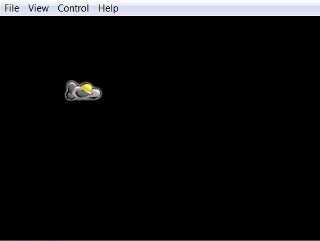


That's about it this time :D This is turning out to be an introdution and understanding of classes and stuffs rather than game programming... hmm... well next time we are going to look into Flixel specific variables like Speed, Acceleration, Drag and how to handle multi key presses which you already know :D from the code above hehehe

Sunday, June 27, 2010

Of bitmaps and sprites in Flixel

Previously on winterglass, we learn how to setup and run an empty flixel project. If it works, congrats! If it doesn't it's time to call for help... :D cause I am moving forward to the next tutorial.
What we are going to do here is to :

- Import a bitmap into the game
- Add the imported bitmap as a sprite to the game
- Eat with your nose!

Since we are not working in the Adobe Flash Pro interface we do not have the tools to draw lavishly beautiful vector sprites. We are left with the option of importing Starcraft SUV sprites from the mpg files from external file.
Importing bitmap in Flixel does not restrict you to bitmap as in bmp files but you get the variety of png, jpg and bmp to choose from each with their own unique advantages. I will be dealing with png since it's clean unlike jpegs lossy compression and has transparency :D
Yes, transparency information in png. We will need to draw a 'ClownShip' with external drawing packages like GIMP, Photoshop, CorelDraw... MS Paint.

Here is my ClownShip below!


I call it clownship.png. Cool right? I mean if you compare with the old vector ClownShip from my previous tutorials. This is a side view instead of the old top down view. You got it right, I am gonna make a left right scrolling shooter instead of the old top down. Enough about directions, since I am writing this tutorial I minus well do it nicely with a good game to end up with in the end.
You might consider buying a Wacom tablet if you are into drawings. It makes drawing sprites ....... easier.

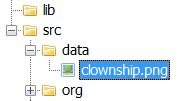
The sprites we are importing is a 64 x 32 pixel sprite. The filename I choosed is clownship.png located at 'data' directory. Yes I created a directory called 'data' inside of 'src'


Now we are going to create a class for the clownship. Why? because creating classes for stuffs makes it easier to control / manage once the project gets big. You will need classes for the player, the enemy...
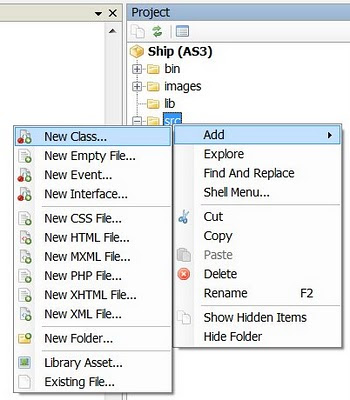
Under 'src', right click and Add->New Class. Call the new class 'ClownShip'. You will get a ClownShip.as file created for you in the 'src' directory.

Your directory should now look like this.


Now open up the file in the editor. Again you are not interested in the default items in the file. Replace them with these.


package

{

import org.flixel.*;


public class ClownShip extends FlxSprite

{

[Embed(source = "data/clownship.png")] private var ImgShip:Class;

public function ClownShip()

{

loadGraphic(ImgShip);

}

}


}


Lets go line by line again. In the previous episode, we started with classes that extends FlxGame then goes into FlxState. It simply means... We create a game base and put in a stage to the game. All game needs a stage even if it's just a title screen, a game level 1, 2, 3...
Now we need to put in a player or sprite so we extends the FlxSprite thus the public class ClownShip extends FlxSprite

[Embed(source = "data/clownship.png")] private var ImgShip:Class;
- This is the way to tell it to import a bitmap picture called clownship.png in the 'data' subdirectory and refer to it as ImgShip.

loadGraphic(ImgShip);
- Ok loadGraphic is a function inherited from the FlxSprite class. Just go ahead and open the FlxSprite.as from the 'src/org/flixel/FlxSprite.as' directory and search for loadGraphic
- Since it's in the constructor function of ClownShip, it simple loads the bitmap whenever it's created / instantiated.
- The are other parameters which can be passed into the loadGraphic function. I will go that later but if you are interested you can just view the doc that comes with flixel.

Ok now that you have created the ClownShip class, try hitting 'F5'... waaa laaaa.. nothing happens. Why? Because you didn't add it in the stage / state. Go back to LoadMeShip.as
Declare the ClownShip and add it in the state! The code should look like this.


package

{

import org.flixel.FlxState;


public class LoadMeShip extends FlxState

{

private var cShip:ClownShip;


public function LoadMeShip():void

{

cShip = new ClownShip();

add(cShip);

//trace('I am running');

}

}

}


private var cShip:ClownShip;
- You declare a ClownShip and call it cShip. You kinda need to grasp the concept here.
- You are telling it that there is a thing called cShip which is a (type) ClownShip.

cShip = new ClownShip();
- You are instantiating / creating the cShip as a new ClownShip. Basically you can create / instantiate lots of ClownShips with a different name but make sure you declare them first. This one so happends to be named cShip. Am I making sense? I am sounding weird here...

add(cShip);
- Now you are adding the cShip, which is a type ClownShip to the playing stage! By default it's located top left ( x = 0, y = 0 )
- What, where did 'add' come from? Take a guess.... yes it's from the FlxState class. To see what it does, just go to the doc under FlxState class and read on.. it tells you it needs an FlxObject to be passed in. FlxObject? Well now take a look at FlxSprite doc file. You see it says it inherits from FlxObject so making it a FlxObject... confuse?... you need to look into these docs often to get up and running on these libraries.

//trace('I am running');
- The // means I commented out this line of code. I think you all knew this already... I just needed this article to be a bit longer.

Now hit 'F5' again. ta daaa.... you have the ship up at the top and it's ready to move around. Now hit the arrow keys. Yes.... yes..... it's not moving.
You will have to wait for the next episode for that to happen! So stay tuned...

Thursday, April 15, 2010

Absolute Ultra Beginners guide to Flixel with Flash Develop

In the previous episode, we see the introduction of game libraries in flash scripting language namely Actionscript 3 or AS3. Ok I am going to make some huge assumptions here. What I am assuming are...

- You are rather well to do with AS3
- You have already looked through my previous tutorials
- You know how to setup and already installed Flash Develop
- You have already link to the Flex SDK (FREE download btw) and compiled the 'Hello World' example I previously wrote about.
- You do not wear skirts
- You are geeky

Ok.. here I am also assuming that

- You want to program a game
- You want to program a 2D game
- You want to program a 2D game with sprites
- You want to program a 2D game with sprites in AS3
- You want to go head on with Blizzard WOW

If you are looking for 3D Flash, look elsewhere or maybe look here in like a few years later. I know we already have Papervision and other stuffs but I am still trying to grab 2D.

First I will need you to download a game library... it will be Flixel.. yeah... Wha? Why not Flashpunk? Do not argue with the master programmer
Well err... currently I have already started with Flixel. Yes I lied... I started with Flashpunk but it kinda links me to Flixel
Ok the reason being that flixel have less letters to type. There!

Start an 'AS3 Project' under Flash Develop. Flash Develop will generate those default files. I call my project name Ship. What we are going to do is to :

- Add a AS3 Project
- Setup the Flixel Library
- Initialises the FlxGame and FlxState
- View the prebuilt in features

After creating a new project, you will get a Main.as default file and if you press 'F5' to test the movie, it will be a blank screen.

Now it will look like this in the Main.as.


Clear all those texts and import stuffs because we are going to use flixel and when we use flixel, flixel handles the import for us in the library itself whatever that means.


package
{
import org.flixel.*;
[SWF(width = "500", height = "350", backgroundColor = "#000000")]

public class Main extends FlxGame
{
public function Main():void
{
super(500, 350, LoadMeShip, 1);
}

}

}


Just copy whatever is in above and replace whatever which was in the Main.as with it. There... hit 'F5'. You got a game running! Yeah!
...
..
.

Sadly no... it's not that easy.

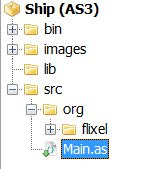
You did download the flixel library already right? Just unzip it and link to the library via the properties in the..... wait... there is a less confusing way... just copy the 'org' folder in the 'src' folder in the project.
It should look like this in the Project view.


Ok now that you have copied the items into the correct place, hit 'F5' Wha? Again? You should get an error stating some undefined properties LoadMeShip. It's ok.


Let's go line by line on the code we just put in.

import org.flixel.*;
- This simply means we are importing the flixel library located at org/flixel folder relative to the main.as and * simply means everything. So it translate to 'gimme everything from org/flixel'

[SWF(width = "500", height = "350", backgroundColor = "#000000")]
- Since we don't have a nice interface to tell how big we want the flash movie to be like in Flash Pro, we have to do it here like this. The parameters should explain themselves. Or should they?

public class Main extends FlxGame
- Why? extends? What? The class name 'Main' directly relates the the filename Main.as. When compile, the system will look for the filename as the class name so basically this is the entry point.
- extends? If you have some kind of programming background this is equivalent to inherit. I hope I am right but basically this means the Main class inherits the FlxGame class (which by the way is located in org/flixel/FlxGame.as) and is capable of extending it's functionality. Gosh correct me if I am wrong...
- If you look into FlxGame.as you will see it imports flash.display.Bitmap, Sprites and all so basically this FlxGame imports those stuffs and when you import extends FlxGame.as you kinda use those too.
- Ok why do we need to extend from FlxGame? Well this is the kinda core class to extends from when using Flixel. To actually learn more about this, you can view in the documentation that comes with the downloaded library under docs/index.html. You will need to refer to these docs VERY frequently as I have to really understand the library you are using. It helps. It really does... and if you are wondering... wow.. these documents are cool.. how do they do that and keep up with all the updates. The answer is 'You can do it too :D' In Flash Develop, look under Tools->Flash Tools->Documentation Generator... wait I am going off topic... later then.

public function Main():void
- Hmm.. how do I explain this. This is actually the constructor function of the class. A function with the same name as the class will be it's constructor, the one that executes upon initialisation of the class , much like Protoss Executor from Starcraft I... I am talking rubbish again
- This is what will run first. As a further reading for you guys, read up on destructor.

super(500, 350, LoadMeShip, 1);
- No relation to Superman, try to guess what it does?
- Although not immediately clear, the 'super' actually calls the class's superclass's constructor!
- Yes... Main being an extention of FlxGame, so Main's superclass is actually FlxGame class and FlxGame constructor is actually the FlxGame function in the FlxGame class which is in FlxGame.as file in org/flixel folder :p. Get it? I really hop you do because, there will be lots of super calling in the future and I really hope you know what it actually means.
- Note the parameter passed in and relate it to the FlxGame constructor function : FlxGame(GameSizeX:uint,GameSizeY:uint,InitialState:Class,Zoom:uint=2)
- 500 = GameSizeX:uint (Width of hte game screen)
- 350 = GameSizeY:uint (Height of the game screen)
- LoadMeShip = InitialState:Class (It will look for the LoadMeShip class, in this case, it's not found cause we have not add it yet!)
- 1 = Zoom:uint=2 (Zoom level with a default of 2)

So now that you realised the error came from the missing LoadMeShip class, all you need to do is to add that class in. Right click on the 'src' folder and Add->New Class


Call it 'LoadMeShip'. Again we don't want the default items in the class so just clear them out and replace with ...


package
{
import org.flixel.FlxState;

public class LoadMeShip extends FlxState
{

public function LoadMeShip():void
{
trace('I am running');
}
}
}


FlxState? What's that? Lets just put it as errr.... game states. You know like menu screen, level 1, level 2... so basically it's a game state we are dealing with here.
You can read more about it in the docs. Now hit() 'F5' to run the test movie. If you get the

'Warning: This compilation unit did not have a xxx specified in Frame metadata to load the configured runtime shared libraries. To compile without runtime shared libraries either set the -static-link-runtime-shared-libraries option to true or remove the -runtime-shared-libraries option.'


You should already know how to solve this (for Flex SDK 4) in my previous post. Just add

-static-link-runtime-shared-libraries=true


in the Project->Properties->Compiler Options->Additional Compiler Options
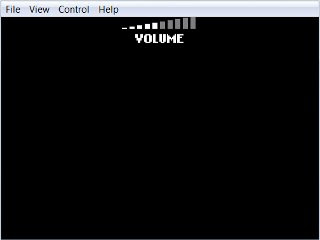
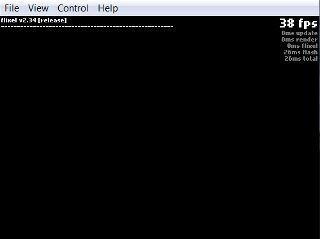
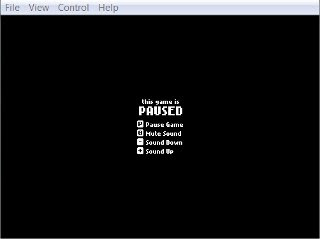
Everything should run fine now. If you are fast enough you can catch the volume control sliding up out of view. This is a default for the volume control. You have lots of other prebuilt stuffs too. Try pressing '`'. You get a console telling your framerate and other infos. If you lose focus on the flash window, your game pauses and a pause screen shows :D
So basically these are the stuffs which are handled by the Flixel game library.


You should also be able to see the 'I am running' in the output panel in Flash Develop! If not you might be using a non debug flash player (solution also explain in my previous blog entry).

Ok that's about as much I am able to write here for today. Sleeping already? Yes it's kinda boring at first but all these needs to be done for the progress to the next tutorial.

Tuesday, April 13, 2010

About game libraries and stuffs....

Well I noticed I mentioned Starcraft II back in 2008. It's 2010 now. My how time flies and I am still waiting for it's release... I wonder how those developers at Blizzard do it. I mean come on.. .2 years ? 1 game? Not ready yet? I seen the beta footage and all and it looks great... ready for release I think.

Ok now look at myself... ha! 2 years barely 10 posts on this blog. Talk about kettle calling the pot black. Anyway I do hope Starcraft II, when it's out 'soon' will be able to run on my aging PC. I got ready for the game 2 years ago, it's already outdated in terms of processing power and graphic card today. Still remember those... 'yes I needed that graphic card for the coming Starcraft II' in 2008 thoughts... but if they did started development 2 years ago, the PC requirements shouldn't be that bad right? yeah right... they probably had it on papers for a whole year Right? Anyway C&C 4 is out and it's been great! Supreme Commander II has since hang's on my PC and refuse to work. The only thing I could joyfully play on my PC now is actually.....
...
..
.
nothing.
I am stuck with Flash Games and mini exe.
Nothing works anymore.
It started showing signs of aging when I poped in and installed Street Fighter 4 and started playing it in slow motion. Then that racing car game that doe not render correctly, then Supreme Commander II with it's 3 frame per second thingy on my PC when things get crowded. It's a sad world and if we don't upgrade often enough, we get left behind.

Same goes to game programming. We need to constantly do stuffs... program mini modules... just get things compiling. It started out really hard when anyone try to grab the concept but with gradual trial and error, you get the picture.

There are a few game libraries that work well with Flash Develop. Gone not really were the days where I used to draw using that Flash Pro tools on vector graphics and all. Nowadays it's Gimp for graphics and a little bit of other tools.

2 rather popular libraries are (FREE too)


- http://www.flixel.org


- http://www.flashpunk.net


These 2 are suitable for sprite based games like those you get on 8-bit days. Wha? I am talking super mario here and games that are 2D, flat. As with other libraries, these 2 makes it easier for game programmers to put things on screen and move them around, provides easy collision detection methods, a game loop, blah blah.. the list goes on

Of course there are others around like

- http://pushbuttonengine.com
- http://code.google.com/p/as3isolib
- http://www.theoworlds.com

and specialised libraris like

- http://code.google.com/p/collisiondetectionkit

These are all cool and all requires time to learn and get used to.
Do take a look see, download the libraries and try them out!

Now why should I? Well you should cause I am gonna use one of these libraries for my next tutorials! .. like next year or so... is that Ironman II coming out?

Thursday, April 8, 2010

Ok now that you have got Flash Develop and Flex SDK on your end assuming you listen to my advice, create a new AS3 project and hit F5. If everything is correct you will get the Flash Player running an empty screen. If you get an error stating...

"Warning: This compilation unit did not have a factoryClass specified in Frame metadata to load the configured runtime shared libraries. To compile without runtime shared libraries either set the -static-link-runtime-shared-libraries option to true or remove the -runtime-shared-libraries option."

it's time to say good bye as your PC cannot and will not compile the script due to lack of vision you are with the majority of us that got stuck with this. Mind you this error comes with SDK 4. After hunting around for a solution, fear not, I have found one!

Go to Projects->Properties->Compiler Options->Additional Compiler Options


Add -static-link-runtime-shared-libraries=true into the String Array... click on that '...' button to add. If you are like me, you will try to type into the 'String[] Array' thingy but it doesn't work. See the time I just saved you? Once it's done.... hitting the F5 will release you from the pain which you are suffering. anger leads to hate, hate leads to pain, pain leads to suffering... is this right? Where does evil fit in?
It should look like below...


Soon after there appears a blank Flash Player Screen. If it's not there, one of the reason might be that the 'No output' checkbox is checked. Just go to Projects->Properties to uncheck that OR you might have the 'Test Movie' option below messed up, which is not likely to happen.

Everything runs, fine. You just compiled your first Flash Develop empty project. Now what fun is that? Lets put in the traditional 'Hello World' Expand the Project Viewer Tree (The thing on the right) under 'src' you will see a Main.as file created for you. Right click on it, you will see the 'Always Compile' checked. What this simply means is that the main.as file will always compile Now that explanation is about as useful as a peice of s..... Ok what it means is that the entry point to the flash .swf you are gonna generate starts from main.as so basically everything starts from main.as. If you are not keen on using main.as as the main starting point, fell free to add a new file and check it as 'Always Compile'. You will see that the main.as automatically demotes and the new file gets the 'Always Compile' icon! duuuhh

Ok.. back to coding. Starting from main.as, double click on it and watch what was defaulty is there such word? written in it. That's basically the proposed item in it which is needed to compile an empty screen. Note 'proposed'... Add a

trace('Hello World');

in the init function. Hit F5 and you should see a 'Hello World' in the 'Output' window.


What's that? No Hello World? You need to spell it correctly in order to make it appear... One of the reason is that you are testing it on a NON DEBUG flash player :D Yes, that was an issue for me for about 5 minutes. To solve this just to go Adobe and get the 'Adobe Flash Player X — Debugger Versions' Get the standalone projector version if possible whichever that suits your style, just remember to point to it under

Tools->Program Settings->FlashViewer ... mine is 'flashplayer_10_sa_debug.exe'.

Ok you should be able to get the 'Hello World' working properly by now!

Sunday, March 28, 2010

How time flies..

Gosh how time disappears flies. It's 2010 and guess what? This site ain't getting much hits anymore. Well, I guess simply because of lack of updates. Don't worry... I will still be here not. Kinda playing on with Flash Develop nowadays. In case you guys have no idea what it is look.... here at www.flashdevelop.org

It's a free AS3 programming interface which works rather well for programmers. Note the words 'free AS3 programming interface'. This simple means you are not getting those drawing tools like you get in normal Adobe Flash Pro and stuffs like that. Well Flash Develop don't even have a timeline for you to look at. It's all in the mind... you need to plan it out and stare real hard at the screen to actually visualised something and they not to develop tumor. What good is it anyway without those nice drawing and timeline? It's for the programmers... not designers. You get to compile stuffs written in pure actionscript. For a better understanding of what it is, here is a screenshot...


You still get a compiled .swf as the final output just that you need more understanding in AS3 when doing it in Flash Develop than in Abode Flash Pro itself. For starters... remember how you use 'trace("Hello World!");' in the timeline to output in the debug window? No? What do you mean you don't remember?
... and how you conviniently use the 'this' to refer to the whatever you are writing the script to target in... well you need to specify if clearly and import, extends... full blown programming in Flash Develop. What I am trying to say is you pretty much needs to import the libraries and stuffs to use it unlike in Adobe Flash Pro where you are spoonfed with the basic libraries without lifting even a single finger.. well not really actually. Flash Develop just don't work out of the download package itself. You need to get the FREE Downloadable Flex SDK from Adobe and point to it in Flash Develop under Tools->Program Settings. (At current time of writing it's Flex SDK 3.5) Screenshot as below...


Once all that is up, you are ready to go... except you can't run in debug unless you download the Adobe Flash Debug Player or something like that from Adobe yet again FREE...

So basically three stuffs to get going

- Flash Develop - FREE
- Flex SDK - FREE
- Adobe Flash Debug Player - FREE
- Brain - FREE

After that, just go ahead and google all the tutorials for Flash Develop. Yeah go on... go on.. what do you mean I am supposed to write one? And I am supposed to convince you to use it too? ... grrrrr